
Prelouge
For nearly 15 years, our family photo system was simple, but nearly impossible to maintain. We had one 50 GB iCloud plan shared across 2 devices under the same Apple ID. Every photo and video from both phones went into the same iCloud Photos library. Unfortunately, this meant we hit the limit extremely quickly, and we would constantly have to manually go into iCloud web, select the date range of photos/videos, download them, categorize them and store them locally on a big hard drive on an old Windows laptop. It was honestly impossible to manage, and so as I grew older, I kept looking for solutions.
I first stumbled upon Plex, and their whole media server system, spending an entire weekend going all in on it, but unfortunately, while it did let me access my photos from elsewhere, it didn’t truly replace the whole automatic uploads experience with iCloud, and all of the benefits with that. In addition, it really was slow, and just completely inefficient, loading the original images/videos, without any proper pre-processing or optimization. That was, until I stumbled upon Immich. Immich is truly one of the most comprehensive, properly built, self-hosted photo and video backup solutions out there, and it completely changed the way I thought about photo storage. The team behind it requires extraordinary credit, and it truly is a showcase of the power of FOSS software. If you have an old computer lying around, and some sort of photo frame(old tablet/in my case a Google Nest Hub Max), this guide is for you.
Prerequisites
- An old computer/laptop lying around with at least 4GB RAM(6GB Recommended), and 4 CPU Cores
- An external hard drive/SSD with enough storage to store all your photos and videos(At least 500GB Recommended)
- This guide will reference a Google Nest Hub Max as the photo frame, but you can use any tablet or smart display, I’ll link some other guides for those below
Getting Started
The first thing you’re going to need to do is create a dual boot partition for Ubuntu. I tried running Immich through WSL, and while it was totally possible, things like hardware acceleration for transcoding videos didn’t work properly, and I also ran into some issue with the docker containers being able to proeprly mount and access the Windows File Drives. In addition, at this point running Windows 11 on a 12 year old laptop was just extremely slow and unperformant, so at some point I decided to just screw it and dual boot.
Installing Ubuntu
Note: Make sure you already have 200-300 GB of free space on your hard drive before starting this process. If you already have Ubuntu/another Linux Distro installed, you can skip this step. You will also need a seperate USB Drive with at least 8GB.
1. Download Ubuntu
- Go to https://ubuntu.com/download/desktop
- Download Ubuntu 24.03 LTS
2. Create a bootable USB (Ubuntu installer)
If you’re using macOS, use balenaEtcher, the steps are nearly identical
- Download Rufus: https://rufus.ie
- Plug in USB
- Open Rufus
- Select:
- Device: Your USB Drive
- Boot Selection: Disk or ISO Image (Select the Ubuntu ISO you downloaded)
- Partition Scheme: GPT
- Target System: UEFI
- Click Start
- Choose ISO mode if asked
Wait until it finishes.
3. Prepare Windows for Dual Boot
- Press
Win + X - Click Disk Management
- Right Click C: drive
- Click Shrink Volume
- Enter amount to shrink: 300000 MB (I put 300 GB but it depends on how much you want to store. Keep in mind the actual database and platform will be stored here, so you should have adequate storage)
- Click Shrink
You should now see Unallocated Space (don’t format it).
4. Install Ubuntu
- Shut down your PC
- Turn it on and press:
F12,Esc,F10, orDel(varies by brand)
- Select your USB Drive
- Choose Try or Install Ubuntu
- Click Install Ubuntu
After this point, I’d say just go through the steps yourself, let it install drivers, do its thing but just make sure that you choose Ubuntu to install alongside Windows Boot Manager when prompted about installation type. Once it’s done, restart your computer, and you should see a boot menu letting you choose between Ubuntu and Windows.
One thing I do remember noting is that your wifi drivers don’t really work the first time around, so you have to USB tether your phone to get internet access, at which point Ubuntu will auto download the wifi drivers and you should be good from that point on.
Setting up Immich
Congrats! Your system should definitely feel much snappier and faster already. Now, let’s get Immich set up. This portion of setting up is just based on the official Immich documentation, which you can find in the Immich quick-start guide. I’ll just be going through the steps I took to set it up on my own system.
Set up Docker and Docker Compose
Note: This step is actually different from the regular docker installs, so make sure you follow these commands exactly
The issue is that, for the hardware accelerated video transcoding to work properly, we need to install Docker a little differently. If you go through the Immich Hardware Transcoding hardware transcoding docs, you’ll notice for the VAAPI API, the one which can work with our Intel integrated graphics, it requires access to the /dev/dri device. Now Docker Desktop for Linux doesn’t run natively. It runs a small VM using KVM. So your countainers aren’t actually running on the host kernal, they’re inside hte VM. /dev/dri exists on the host, but the VM doesn’t have direct access to /dev/dri by default. Thus, it’s going to trigger an issue like this:
error gathering device information while adding custom device "/dev/dri": no such file or directorySo, we install the native Docker Engine instead of Docker Desktop, so that the containers run directly on the host kernel, and have access to /dev/dri. As an alternative, you can also try to set up a custom KVM VM with PCI passthrough, but that’s a lot more complicated.
- Open Terminal
- Install Docker Engine + Compose plugin (official Ubuntu packages):
sudo apt update
sudo apt install -y docker-ce docker-ce-cli containerd.io docker-compose-plugin- Add your user to docker group:
sudo usermod -aG docker $USER
sudo reboot- Restart and verify:
docker info | grep RootlessThis should return nothing or Rootless: false. Do note that with this docker install, you won’t have any Docker Desktop GUI, but you can use the CLI or Portainer if you want a web UI.
Installing Immich
This part is mostly just based off the Immich quick-start guide, but with a few of my own tid bits.
- Download the required files
mkdir ./immich-app
cd ./immich-app- Get the docker compose and env files
wget -O docker-compose.yml https://github.com/immich-app/immich/releases/latest/download/docker-compose.yml
wget -O .env https://github.com/immich-app/immich/releases/latest/download/example.env- Change the .env files with custom values
For this step, you’re going to need to now have your external drives plugged in. You need to figure out how linux is accessing those drives by usually going to routes like /mnt or /media where you should see your drive. I would double check and make sure you have your exact file paths as sometimes the way that linux deals with mounted drives is a bit weird. For example for my drive Seagate 8TB, Ubuntu randomly decided to change the mount location from /media/riddhiman/Seagate 8TB to /media/riddhiman/Seagate 8TB1 after a reboot, so just make sure you have the right paths.
# These were just my paths as an example

# The location where your uploaded files are stored
UPLOAD_LOCATION=/media/riddhiman/Seagate\ 8TB1/Immich/library

# The location where your database files are stored. Network shares are not supported for the database. I'd recommend keeping it here, and if possible you should have an SSD as your local drive as it makes file operations much faster
DB_DATA_LOCATION=./postgres

# To set a timezone, uncomment the next line and change Etc/UTC to a TZ identifier from this list: https://en.wikipedia.org/wiki/List_of_tz_database_time_zones#List
TZ=America/Los_Angeles

# The Immich version to use. You can pin this to a specific version like "v2.1.0"
IMMICH_VERSION=v2

# Connection secret for postgres. You should change it to a random password
# Please use only the characters `A-Za-z0-9`, without special characters or spaces
DB_PASSWORD=postgres (just use a random pwgen utility)

# The values below this line do not need to be changed
###################################################################################
DB_USERNAME=postgres
DB_DATABASE_NAME=immich- Enable Hardware Transcoding/Hardware Acelerated ML
To figure out what works for you in terms of Hardware Transcoding, I’d probably either read through this Immich documentation the hardware transcoding docs or just copy paste the docs into ChatGPT, give it your laptop specs and figure out what works. For me, I used VAAPI for Hardware Transcoding on my computer and changed my docker-compose.yml as such. Make sure you also download the associated hwaccel.transcoding.yml or hwaccel.ml.yml. However, for this section it’s unique for each usecase and I’d recommend going back and forth with ChatGPT, seeing which video codecs work or don’t work with your system, and finding the best fit.
As for Hardware Accelerated ML, my system didn’t qualify for anything other than just CPU, but Immich has this incredible feature called Remote ML where you can set up another computer to do all the ML processing for you. For me, I unfortunately don’t have any such hardware accelerated ML devices, but the CPU on my personal Apple M1 is much faster, so to alleviate some of the workload I set up Remote ML on my M1 MacBook Air, which drastically sped up the ML processing time. I’ll talk more about that later.
- Start the containers
Run docker compose up -d to start the containers. The first time you run this, it might take a while as it has to download all the images and set everything up. If you have any issue or errors, I’d probably just chatgpt them or look through the Immich docs.
- Access Immich
Success! You should now be able to access Immich at http://<machine-ip-address>:2283. For your machine ip address on Ubuntu, you can just run hostname -I and it should show up.
Now, as the first admin user just fill out all the info, go through each of the steps(which should be pretty self explanatory) and set up your account.
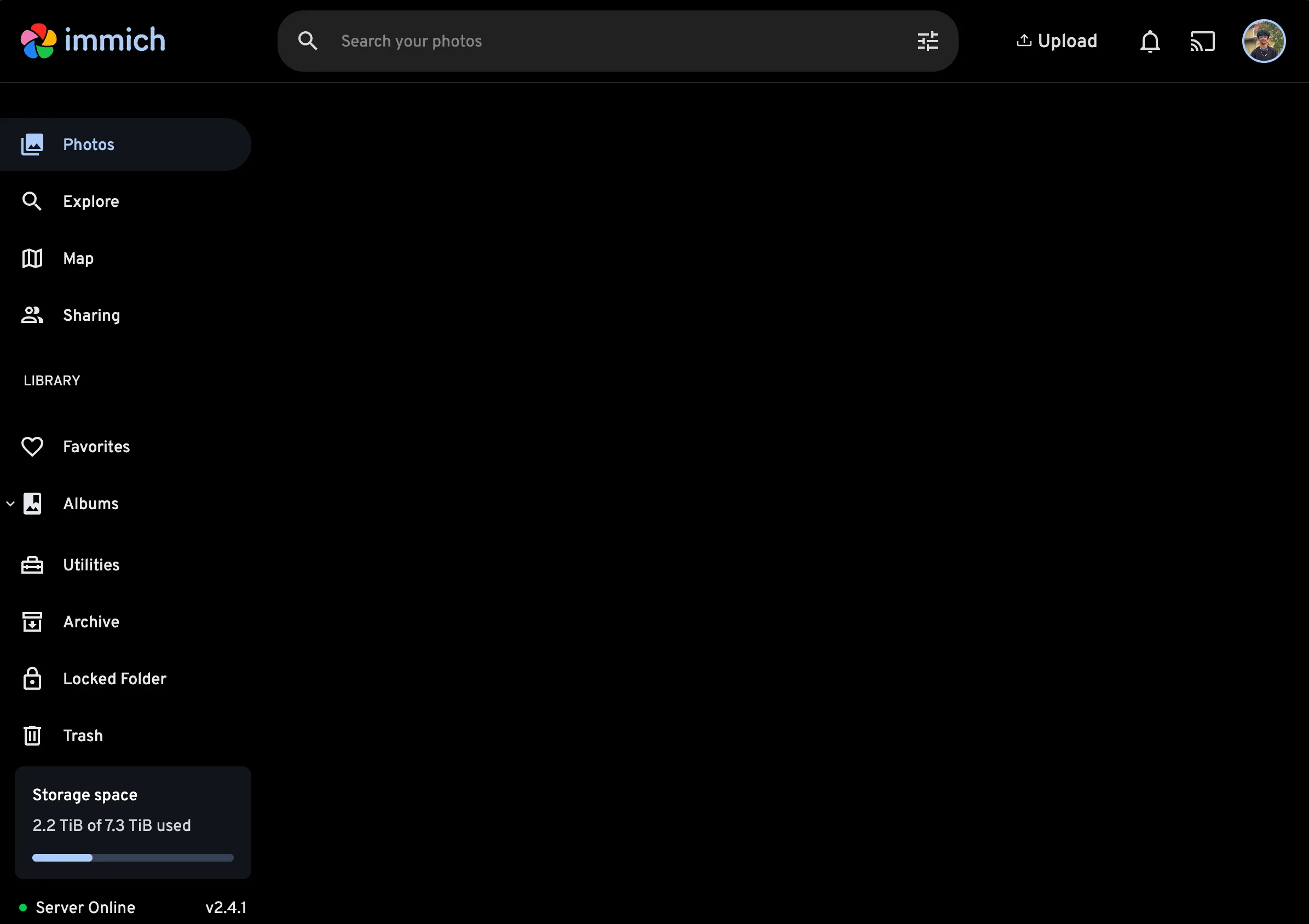
Troubleshooting: Skip to the Troubleshooting section at the end of this post if you have any issues accessing the web UI. If you need to turn it off later, you can just run docker compose down in the same directory where your docker-compose.yml file is located.
Post-Installation Steps
Note: These steps are optional, but highly recommended. Skip to the next section if you want to get to accessing your photos on your phone/backups
Setting up your external libraries
Now that you have Immich set up, it’s time to set up your external libraries. External Libraries are basically folders on your external drive which Immich will monitor and automatically upload photos and videos from. So for example in my case, I had one big folder on my external drive called Family Photos where I dumped all my photos and videos from iCloud, Google Photos, and other sources. If you have all of your photos and videos in one cloud service like say iCloud Photos, there is an amazing tool called immich-go which can directly download all your photos and videos from Google Photos/iCloud Photos/others, follow the instructions on the repo there to do so.
Much of the instructions here are based off the official Immich docs the external library guide so if you get stuck at any point just double check there.
- Mount the directory into the containers
Edit docker-compose.yml to add one or more new mount points in the section immich-server: under volumes:. The :ro at the end means read-only, which gives you the peace of mind that if Immich ever corrupts or something, it won’t mess with your original files.
immich-server:
    volumes:
        - ${UPLOAD_LOCATION}:/data
        - /media/riddhiman-rana/Seagate\ 8TB1/All\ Rana\ Photos:/media/riddhiman-rana/Seagate\ 8TB1/All\ Rana\ Photos:ro
- /mnt/photos2:/mnt/photos2:ro # you can delete this line if you only have one mount point, or you can add more lines if you have more than two-
Restart Immich by running
docker compose downand thendocker compose up -dagain. -
Create the External Library in the Immich Web UI
- Click your profile icon on the top right
- Click Administration
- Select the External Libraries tab
- Click the Create Library button
- Fill out the details, and under the Folders tab, add the exact same path you used in the
docker-compose.ymlfile. For me, it was/media/riddhiman-rana/Seagate 8TB1/All Rana Photos.
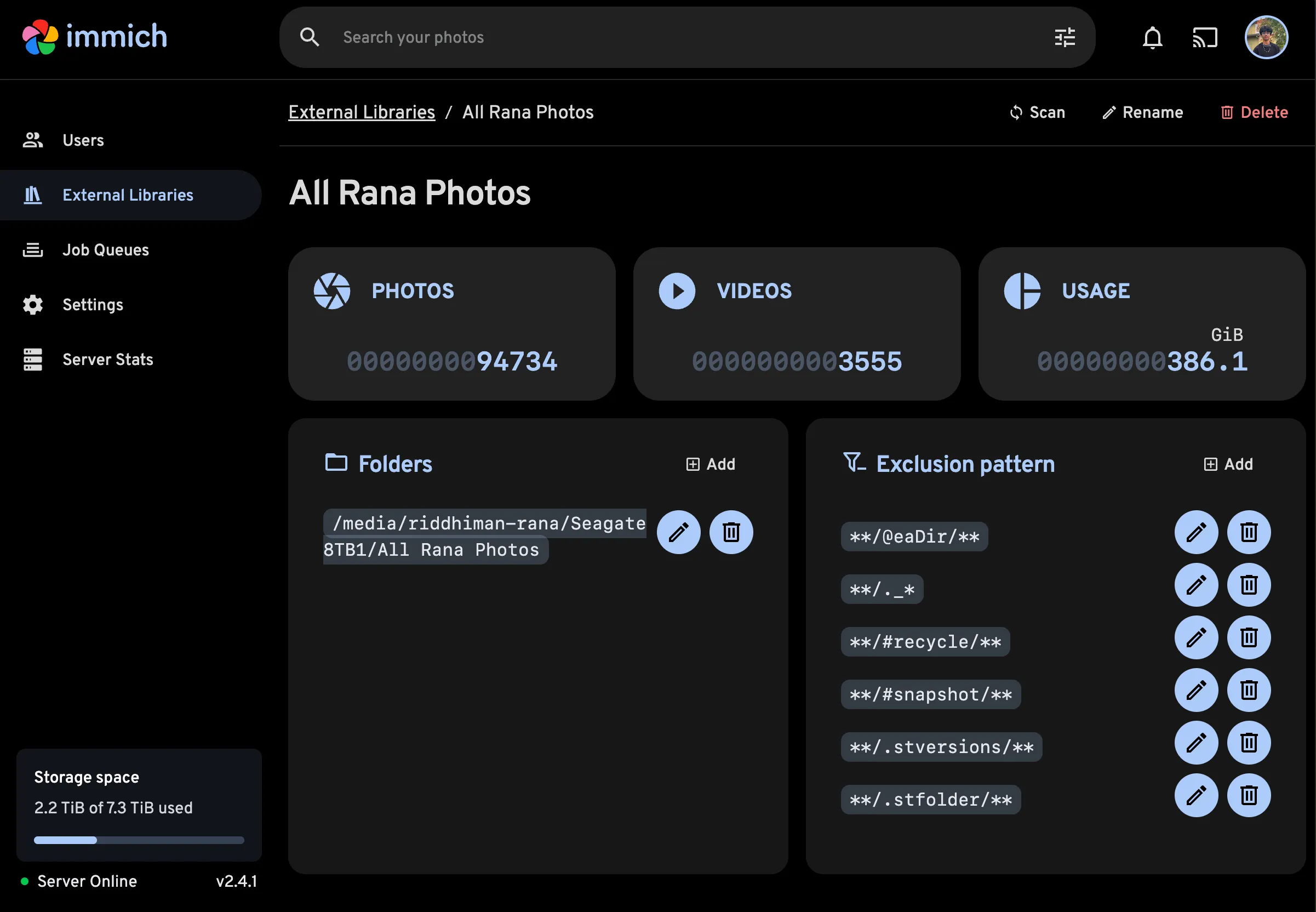
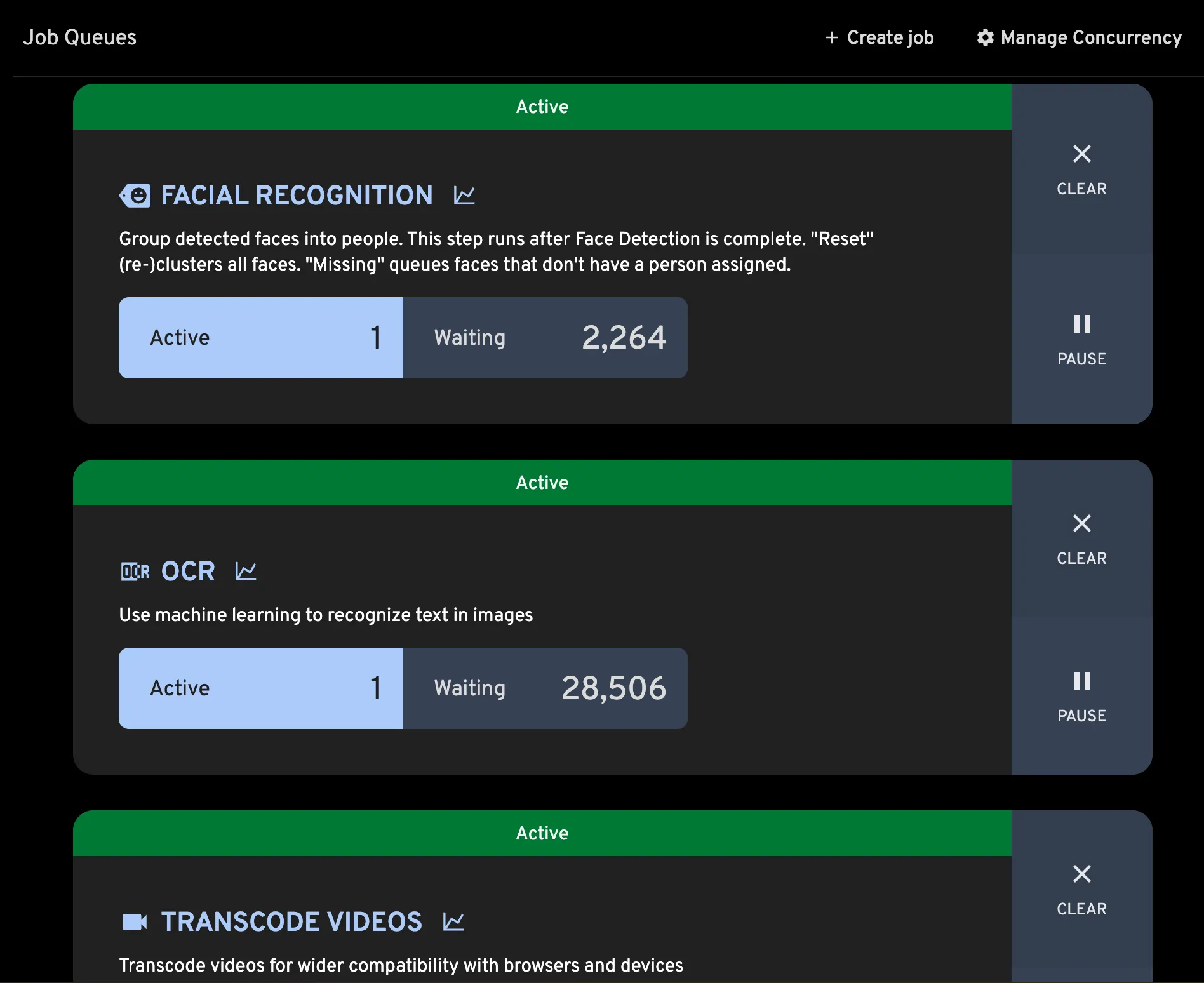
And now, just let it sit. Immich will start scanning through all your photos and videos, and adding them to the database. Depending on how many photos and videos you have, this could take anywhere from a few hours to a few days. Go to the Job Queues tab in the Administration panel and see it spin through all the jobs.
Connecting and backing up from the phone app
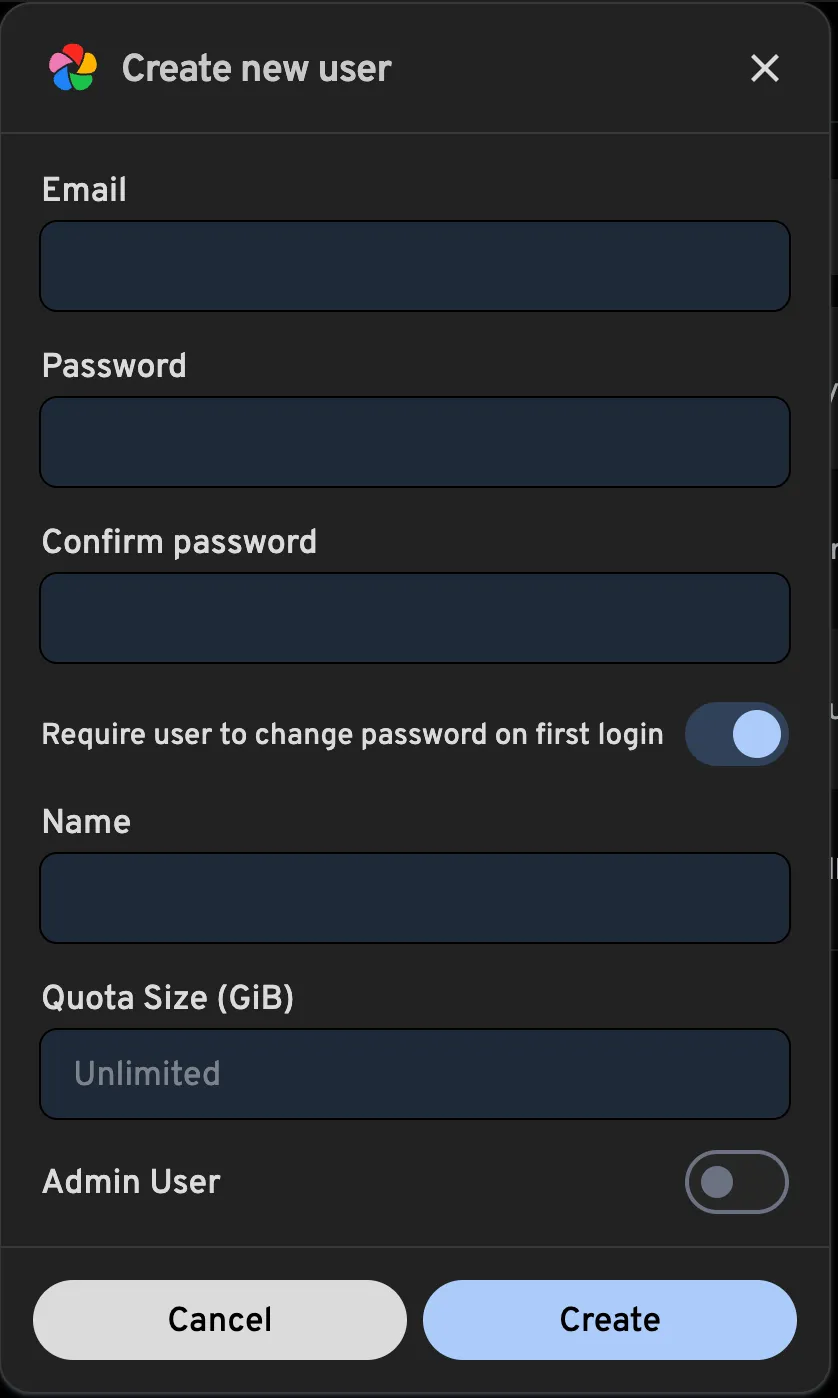
Now that you have Immich set up, it’s time to connect your phone so that you can back up photos directly from your phone to your Immich server. During this process, I’d also say start adding users if you have family members who want to back up their photos too. It’s pretty simple and you just have to go to the Administration panel, click Users, and then Add User with their emails and passwords.
-
Download the Immich app from the App Store/Play Store
-
Open the app, and on the server URL page, enter your server’s IP address with port 2283. For example,
http://<machine-ip-address>:2283 -
Log in with your account credentials
-
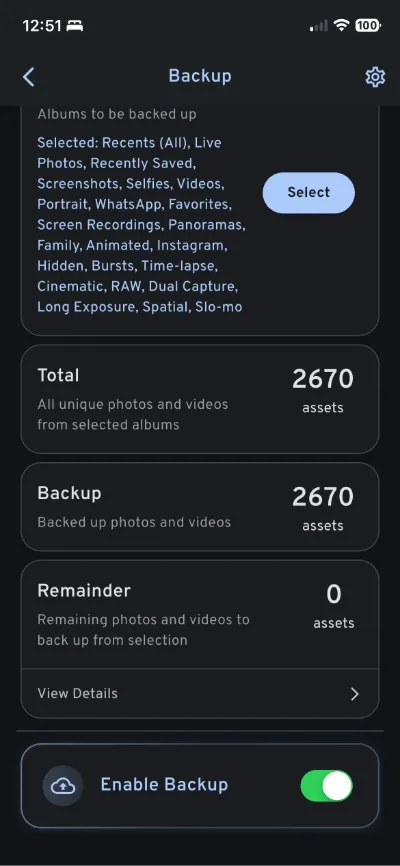
Click the Cloud Icon next to your profile picture on the top right
And tada! After you press Enable Backup, you should now be able to back up photos directly from your phone to your Immich server. For me, I had to just leave it sitting on that screen for like 2-3 hours as it had to process almost 3,000 photos and videos, but eventually it finished.
Setting up Video Transcoding
Now, we need to continue setting up the Hardware Accelerated video transcoding that we modified earlier in the docker-compose.yml file. Essentially, video transcoding is when we’re processing videos to make them more efficient for streaming and viewing on different devices. So for example, if your iPhone recorded footage in HEVC format, but to be able to play it on the browser it needs to be in H.264 format, Immich will transcode each and every video automatically to make sure the whole library is optimized for streaming.
-
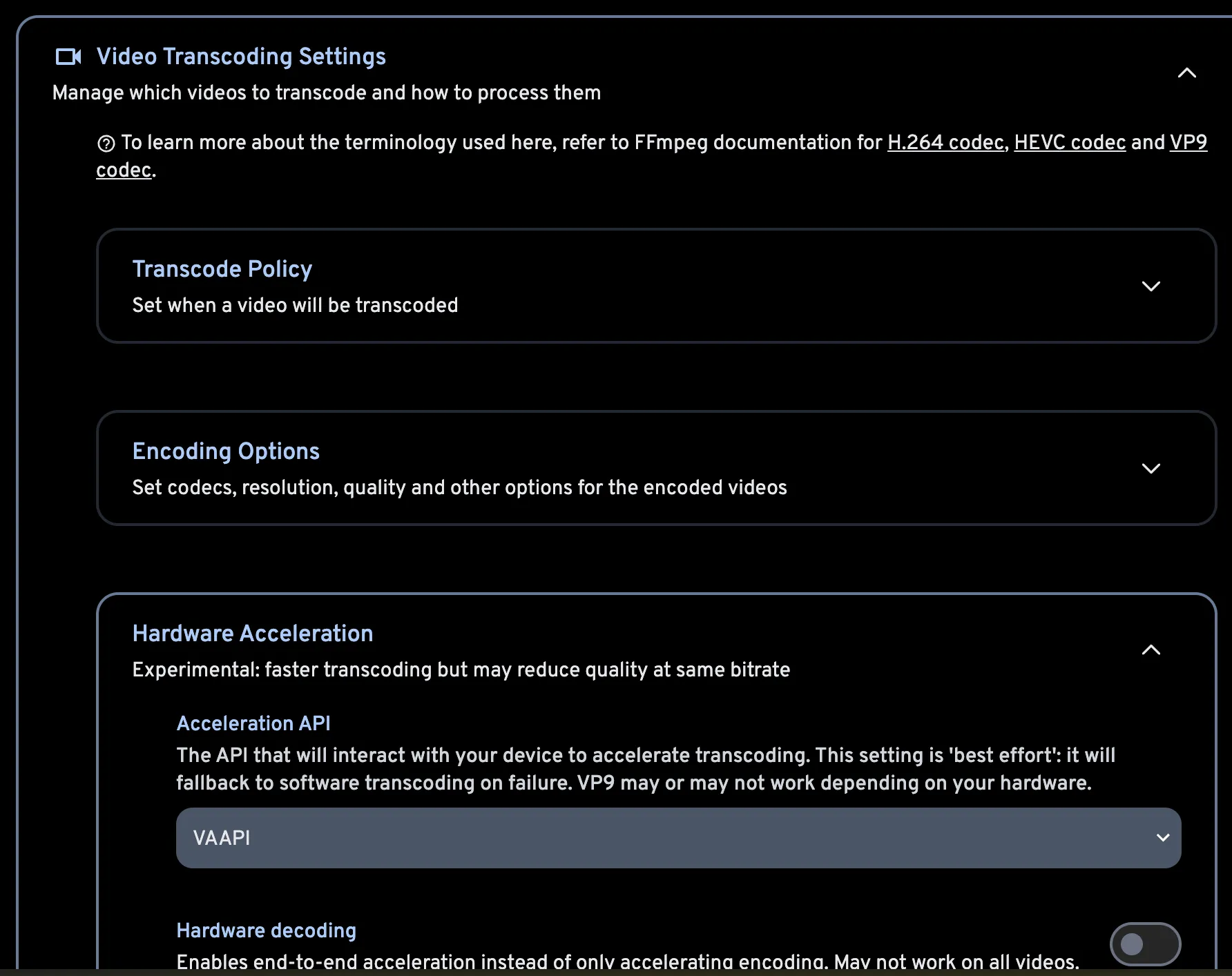
Go to the Administration panel in the Immich web UI
-
Click on Settings
-
Click on Video Transcoding Settings
-
Under Hardware Acceleration, select the method you set up in the
docker-compose.ymlfile. For me, it was VAAPI. I’d say don’t enable Hardware Decoding as well until you confirm everything is working properly. For example on my system, because my Intel CPU generation was a bit old, it didn’t support hardware decoding properly and those formats, so it defaulted to software decoding anyway.
Setting up Remote ML (Optional)
If you have another computer lying around with better hardware specs, you can set up Remote ML to offload all the machine learning processing to that device. For me, I set it up on my M1 MacBook Air, which drastically sped up the ML processing time. The following steps are based off the official Immich docs the remote machine learning guide.
-
Ensure the remote server has Docker installed
-
Copy the following
docker-compose.ymlto the remote server
name: immich_remote_ml

services:
  immich-machine-learning:
    container_name: immich_machine_learning
    # For hardware acceleration, add one of -[armnn, cuda, rocm, openvino, rknn] to the image tag.
    # Example tag: ${IMMICH_VERSION:-release}-cuda
    image: ghcr.io/immich-app/immich-machine-learning:${IMMICH_VERSION:-release}
    # extends:
    #   file: hwaccel.ml.yml
    #   service: # set to one of [armnn, cuda, rocm, openvino, openvino-wsl, rknn] for accelerated inference - use the `-wsl` version for WSL2 where applicable
    volumes:
      - model-cache:/cache
    restart: always
    ports:
      - 3003:3003

volumes:
  model-cache:
Note: If you’re using hardware acceleration, make sure to uncomment the extends: section and set it to the appropriate method for your hardware, as well as add the hwaccel.ml.yml file. You can check the Immich docs for more details on that.
-
Start the remote ml container by running
docker compose up -din the same directory as yourdocker-compose.ymlfile. -
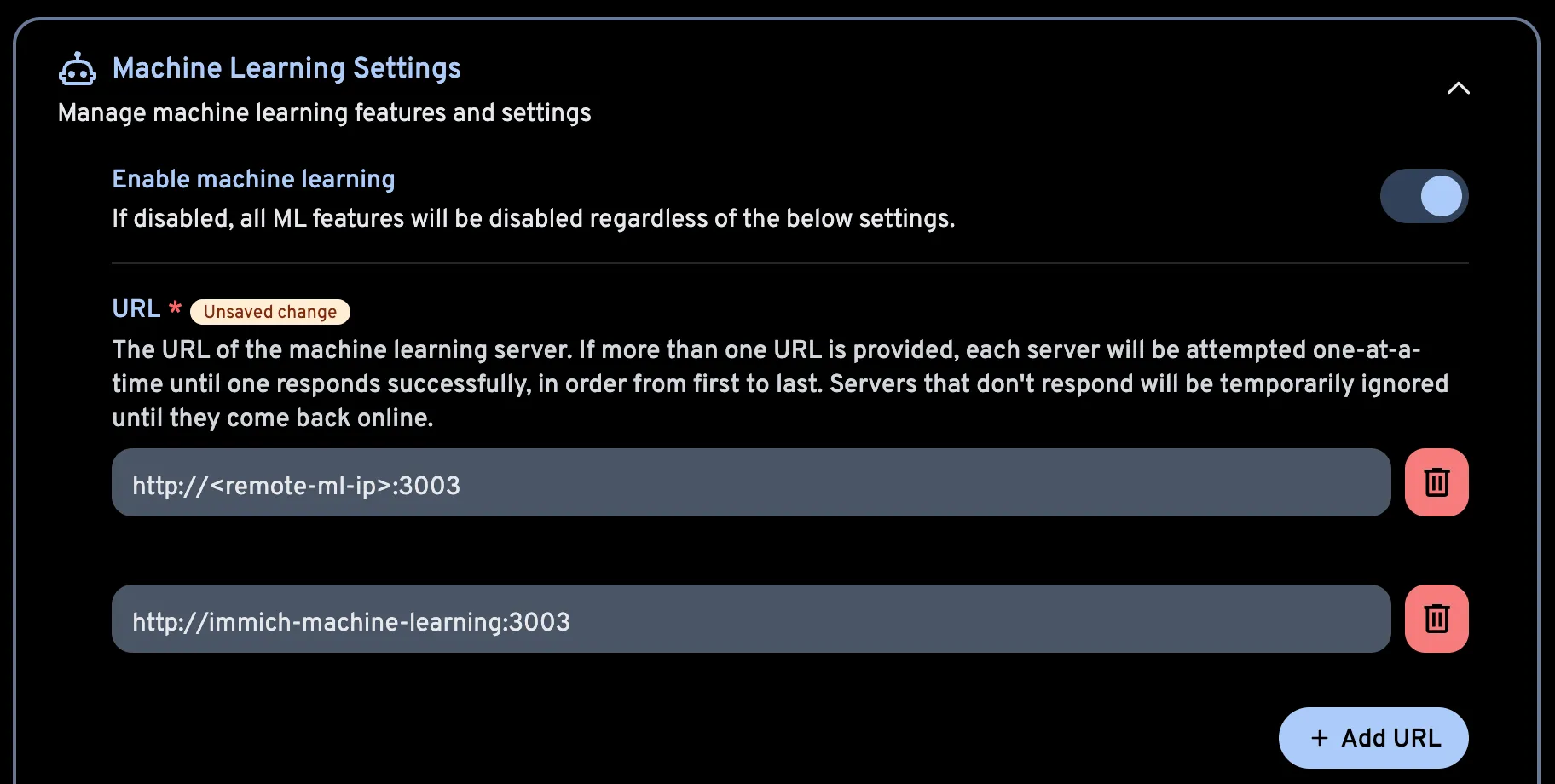
Go back to your main Immich server web UI, go to the Administration panel, click Settings, and then Machine Learning Settings.
-
Select Remote Machine Learning, and add the IP address of your remote ML server with port 3003. For example,
http://<remote-ml-server-ip>:3003
I’ll get into more details on the Remote ML Server IP’s in the next section, but just so you know you the url http://immich-machine-learning:3003 refers to the internal docker network, so it won’t work outside of the docker containers. You need to use the actual IP address of the remote ML server.
Accessing Immich from outside your local network
So now, this is perfect, it’s completely set up, but the issue is that all of this is still just running on your local network. What if you want to access your photos when you’re outside your home? There are a few ways to do this, but the best way is to set up a combination of a Cloudflare Tunnel and a TailScale VPN. This way, you can securely access your Immich server from anywhere. The issue with just using Cloudflare Tunnel alone is that backup file uploads are limited to 100MB per file, which is a problem when you’re uploading videos. So by using TailScale, you can have a secure VPN connection to your home network as a backup, and then use Cloudflare Tunnel to access the web UI over a public domain.
Setting up Cloudflare Tunnel
-
Create a Cloudflare account if you don’t have one already
-
Add a new site/domain to Cloudflare and change your domain’s nameservers to point to Cloudflare’s nameservers(I think you have to have a domain for this to work, but it’s only like $10/year for a basic domain)
-
Once you’re on your main account home, Click on Zero Trust in the left sidebar, then click on Network and then you should see some Quick Actions like **Manage
To be finished… 😭